

Outlook icon confusion
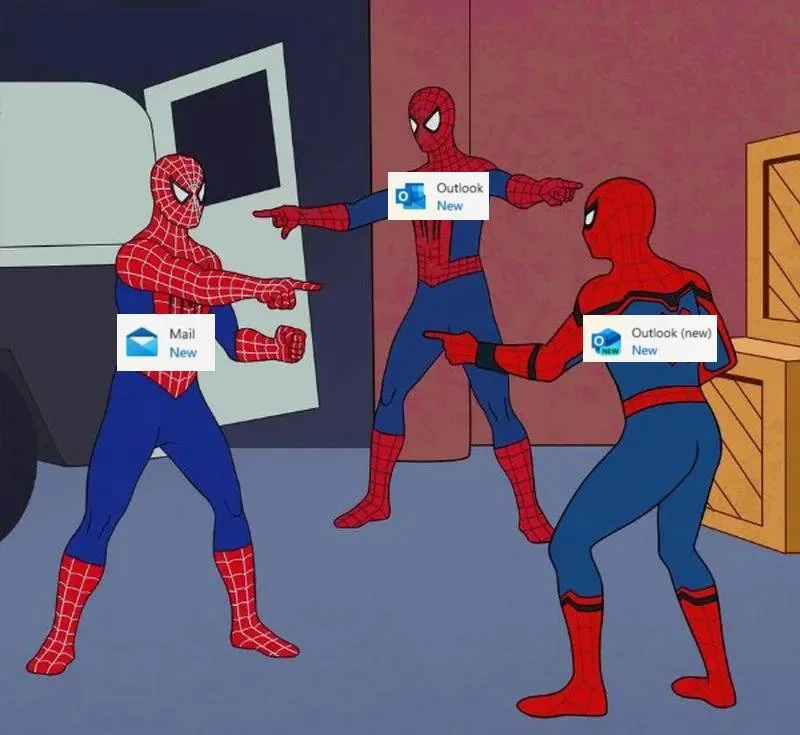
If you've opened the Start menu on Windows in the last few years and found yourself staring at multiple different Outlook icons, you're not losing your mind. There is a reason the meme above exists. It's confusing. What is the Outlook (new) anyway? Microsoft is in the middle of rolling out Outlook (new). The transition has been happening for two years and Microsoft keeps pushing the deadline. Even after my years in IT, I still have to stop and think about which icon to click on when I search "Outlook."
Why so many?
Windows 11 comes with Outlook (new) pre-installed on every PC. Microsoft did this on purpose so the new app would be available to everyone, including people who don't pay for Microsoft Office. If you also pay for Microsoft 365 (the subscription that includes Word, Excel, and Outlook Classic), Classic is installed too. Both apps automatically pin themselves to your Start menu, causing even more confusion.
Inside each of these apps is a little toggle in the upper-right corner. The toggle in Classic says "Try the new Outlook." The toggle in new Outlook says "New Outlook," and switching it off takes you back to Classic.
Same look, different foundation
They look similar at first. Same inbox, same calendar, same general layout. The differences show up in the small things and in what each one can do.

Outlook (new)
Outlook (new) is something different underneath. It is, basically, the Outlook website wrapped in a window that looks like a desktop application. Microsoft can update it faster because it shares the same code as the web version. It is free to use, even without a Microsoft 365 subscription. This is why it replaced the "Mail" app on your computer. It works fine for sending and receiving email. This is the Outlook Microsoft has been transitioning to.
Outlook Classic
Outlook Classic is the program Microsoft has been building for twenty-nine years. It runs locally on your computer. It can keep a full local copy of your email, search through everything offline, work with plug-ins (like Zoom or Salesforce or other business tools that connect into your inbox), and use small automations called macros that businesses have written and depended on for decades. It connects directly to your email provider without going through Microsoft as a middleman. This means you could read your Gmail within this Outlook application.
Deadline drift
Microsoft has been planning to retire Classic for years. The plan has three different phases:
People choose which one they want, but you can still go back.
The Outlook (new) becomes the default, but with the ability to still go back.
Finally, eventually, the old one disappears.
Microsoft has missed every deadline they've set for the second phase. The most recent miss was back in February 2026. Microsoft was supposed to start automatically defaulting business users to the new Outlook by April. It didn't happen. Microsoft pushed the date back by a year, to March 2027. That was the third time they've delayed this phase. The reason they keep delaying is that businesses are telling them, loudly, that the new Outlook doesn't have enough of the features the old one has.
For most people reading this, none of that matters directly. If you're using Outlook at home, Microsoft already moved you forward when they shut down the old Mail and Calendar apps at the end of 2024. If your business uses Outlook for work, your IT department has at least until March 2027 to decide what to do. Outlook Classic is contractually supported through at least April 2029.
So if you are one of those businesses or individuals that rely on those plug-ins and macros that are still missing, no need to panic. Yet.
Outlook, now with more Outlook
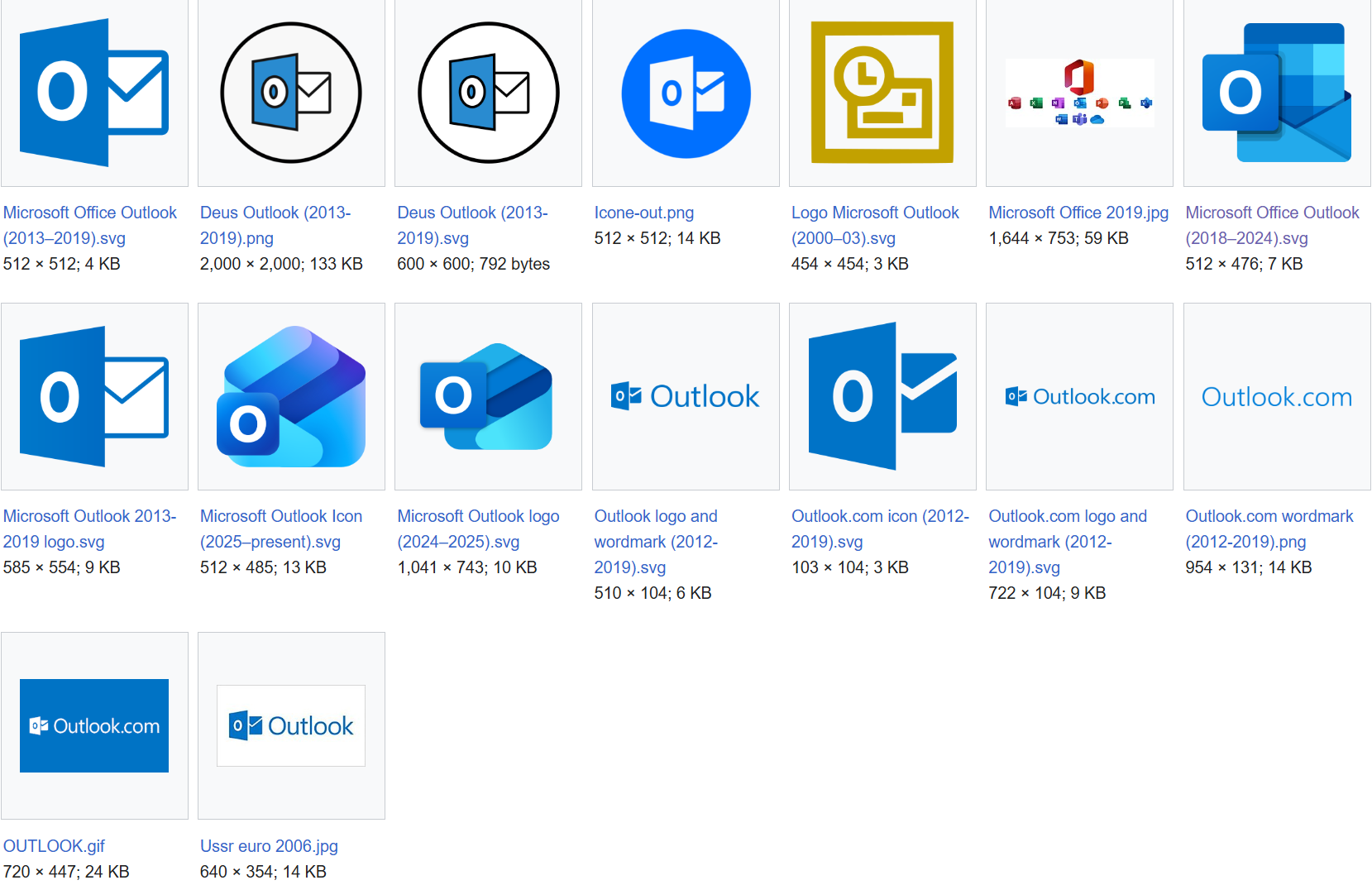
So far, I've described Outlook on Windows desktop computers. Outside of that, the word "Outlook" covers four more products.
Outlook.com is a free webmail service. It used to be called Hotmail. If your email address ends in @hotmail.com, @outlook.com, @live.com, or @msn.com, that's the service running your account. Outlook.com lives in a browser. There's nothing to install.
Outlook on the web is the work version of the same idea. If your company uses Microsoft 365 for email, you can sign in at outlook.office.com from any browser and see your work mail. This is essentially Outlook (new).
Outlook for Mac is a separate native application built specifically for Apple computers. It is a different program from Outlook on Windows, with a different codebase and a different history. As of 2023, Outlook for Mac is free to use. No Microsoft 365 subscription required.
Outlook Mobile is the iPhone and Android app. It also has its own codebase. Today, this is the standard Microsoft mail app for phones.
So depending on what someone means when they say "Outlook," they could be referring to a free webmail service, a corporate webmail service, a desktop application (two actually), an app that runs only on Macs, or an app on their phone. Six products with one name. This is why when you look through Microsoft Support articles, sometimes it feels like they're talking about something else. They just might be.
Cut down the confusion
There are a few practical things you can do if the icon situation trips you up, or if you're trying to figure out which Outlook to actually use:
Pick one and pin only that one to your taskbar. When I was first hit by Outlook confusion, this is what I did right away. Open all the Outlooks you have. Find the one you actually want to use. While it's open, right-click the app icon. Choose "Pin to taskbar." If there are already other Outlook icons on your taskbar, right-click those and click "Un-pin from taskbar." Now if you are ever unsure if you're in the right Outlook, close it out and click the icon on your taskbar.
If you pay for Microsoft 365 and you use plug-ins, macros, stay on Classic for now. It's supported through at least 2029 and it has the features you're depending on. Use the toggle in new Outlook to switch back if you got moved automatically or by accident. There are new “web add-ins” that are starting to roll out to replace COM add-ins. If you are interested in New Outlook, check to see if your old COM add-ins have a new web add-in.
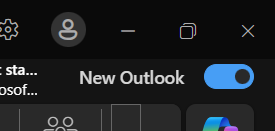
If your Outlook doesn’t look right, look in the top right corner of the application. Click this toggle.
Test both before you commit. Each one has a toggle in the upper-right corner. Switching is entirely reversible. Give the new one a try for a week. If it does what you need, stay. If it doesn't, you can still switch back.
If you just want email, give the new one a try. Most people who only use Outlook for reading and sending email will be fine. It's free, it's fast to load, and it has the same general look as the web version you might use at work.
If you're still using Windows Mail or Calendar, get out. Those apps stopped working at the end of 2024. They still open, but they won't send or receive email. Export anything you want to keep, and pick a new home for it.
Thanks Microsoft
It's not you. Microsoft built a new product, decided it wasn't ready, then kept shipping it anyway. They renamed the old one to make room and missed every deadline they set. This left a trail of icon devastation on people's computers. The fact I'm writing this article at all tells you that Microsoft dropped the ball.
If there's only one thing to remember from this: there is no rush. Whichever Outlook you're using right now is supported (unless you're on Windows Mail or Calendar). The deadlines that exist are still in the future, and Microsoft has shown they aren't shy about moving them. Pick the one that works for you. Ignore the rest.
Joel
If you have a funny Outlook confusion story or if you're still confused, I'd love to hear from you! Reach me at joel@freshfromcache.com
Outlook icons via Wikimedia Commons.